To schedule a Ghost post, you set the post status to scheduled and provide a future timestamp in the published_at field. When you configure this through the Ghost editor or the Admin API, Ghost takes over the internal timer and publishes the article at that exact minute. You do not need to run your own background job or ping the server to trigger the release.
How do you schedule a post in the Ghost editor?
You schedule a post manually by clicking the publish menu in the top right corner of the Ghost writing interface. You select the option to schedule the post for later, which reveals a date and time picker. Ghost defaults to a time ten minutes in the future. You pick your target release date and click the confirmation button.
The post immediately moves out of your drafts and into the scheduled queue in the admin dashboard. You can click back into the post at any time before it goes live to edit the text or adjust the release time. The web editor handles the status changes and timestamp formatting behind the scenes. Manual scheduling works well when you write directly in the browser for a single site, but it becomes a bottleneck when you manage your content pipeline from a separate application.
How do you schedule a Ghost post using the Admin API?
When you move away from the manual editor, you send your content directly to the Ghost Admin API. You construct a JSON object containing your HTML content, title, and metadata. To tell the server this is a future release, you must pass two specific keys in your payload.
You set the status key to the exact string "scheduled". You set the published_at key to a valid future timestamp. If you pass a future date but leave the status as "published", Ghost publishes the article immediately and simply forward-dates the display time on your site. You must explicitly set the scheduled status.
Once the API accepts the payload and returns a 201 Created status, Ghost handles the rest. Ghost runs a persistent background process that watches the clock. When the server time catches up to your published_at value, the system flips the post status to published, updates the database, rebuilds the necessary routing caches, and makes the article public.
Before you can send this payload, you need to authenticate. You generate a JSON Web Token using your custom integration credentials and pass it in your request headers. If you have not set up your credentials yet, read the guide on finding the correct Ghost Admin API URL and authenticating requests.
The JSON payload structure for a scheduled post
When you send the POST request to the /ghost/api/admin/posts/ endpoint, you must wrap your post object in a posts array. The minimum required fields to schedule a new article are the title, the content format, the status, and the published date.
{
  "posts": [
    {
      "title": "My Scheduled Article",
      "html": "<p>This is the content.</p>",
      "status": "scheduled",
      "published_at": "2024-11-20T14:30:00.000Z"
    }
  ]
}
You can also include tags, authors, and custom excerpts in this same object. If you omit the html field and send lexical or mobiledoc formats instead, Ghost will compile them normally before placing the post in the queue.
What date format does the Ghost API expect?
Ghost expects the published_at value to be a valid ISO 8601 formatted string. You cannot send a Unix timestamp integer or a formatted string like "May 15, 2024". The API strictly requires the full date and time string.
You format the string as YYYY-MM-DDTHH:mm:ss.sssZ. The T separates the date from the time, and the Z at the end indicates that the time is in Coordinated Universal Time (UTC).
Ghost also enforces a minimum time buffer. You cannot schedule a post for five seconds in the future. The API requires scheduled times to be at least two minutes ahead of the current server time. This buffer gives the background process enough runway to register the new event. If you send a date that is already in the past, or too close to the current time, the API returns a 422 Unprocessable Entity error. If you need an article to go live immediately, change the status to "published" and omit the future date.
How do you handle timezone offsets for scheduled releases?
Ghost stores all scheduling data in UTC. When you log into the web editor, the interface reads your site timezone settings and translates those UTC timestamps into your local time. The Admin API does not do this translation for you.
If you write a script to schedule a post for 9:00 AM in New York, you must calculate the offset before you send the payload. New York is four hours behind UTC during daylight saving time. You can either send the absolute UTC time string by adding four hours to your target time, resulting in 13:00:00.000Z, or you can send the local time and append the timezone offset directly in the string.
To use the offset method, you drop the Z and append -04:00 to the end of the string. Ghost parses the offset and converts it to UTC before saving it to the database. If you send a local time string without the Z and without an offset, the system treats it as UTC by default. Your post will publish several hours off schedule.
How do you query the queue of scheduled posts?
You retrieve your pending content by sending a GET request to the posts endpoint with a filter query parameter. You append ?filter=status:scheduled to the Admin API URL.
This request returns an array of post objects containing everything currently waiting in the timer queue. You can inspect the published_at fields to audit your upcoming content calendar. If you run multiple automated tools or have guest writers scheduling their own work, reading this queue prevents you from publishing two articles on the exact same day.
You can narrow the query further by passing multiple filters. If you only want to see scheduled posts assigned to a specific author or carrying a specific tag, you chain the filters together using a plus sign, which acts as an AND operator in the Ghost API syntax.
How do you update a scheduled post through the API?

You change the release date or fix a typo in a scheduled post by sending a PUT request to the Admin API endpoint for that specific post ID. Ghost enforces strict collision control to ensure two different clients do not overwrite each other's changes.
You cannot just send the updated title or the new published_at time in isolation. You must include the post's current updated_at timestamp in your PUT payload. This field acts as a revision lock.
When Ghost receives your PUT request, it compares the updated_at value in your payload against the value stored in the database. If they match, the update succeeds. If the timestamp you send is older than the one in the database, Ghost rejects the request with a 409 Conflict error. A conflict means another script, or a human in the web interface, modified the post since you last fetched it.
To safely edit a scheduled post, you always send a GET request first to retrieve the current post object. You extract the updated_at value from that response, merge it into your new JSON payload, and send the PUT request back.
The JSON payload structure for an update
When you send the PUT request to /ghost/api/admin/posts/{id}/, you again wrap the object in a posts array. You must pass the required updated_at value alongside the fields you want to change.
{
  "posts": [
    {
      "title": "My Corrected Article Title",
      "updated_at": "2024-10-15T09:12:33.000Z"
    }
  ]
}
If this request succeeds, the API responds with the modified post object, which will include a brand new updated_at timestamp reflecting your recent change. You must save this new timestamp if you plan to make further edits in the same script.
How does automated scheduling trigger social syndication?
Scheduling the blog post is only the first part of a distribution workflow. Once Ghost publishes the article, you need a way to announce it on your social channels. Because Ghost manages the publishing timer entirely internally, your external scripts do not know exactly when the post goes live unless Ghost tells them.
You solve this by configuring a webhook in the Ghost admin settings. You point the webhook at your own server and set it to trigger on the post.published event. When the internal timer fires and the article goes live, Ghost immediately sends a POST request containing the published article data to your server.
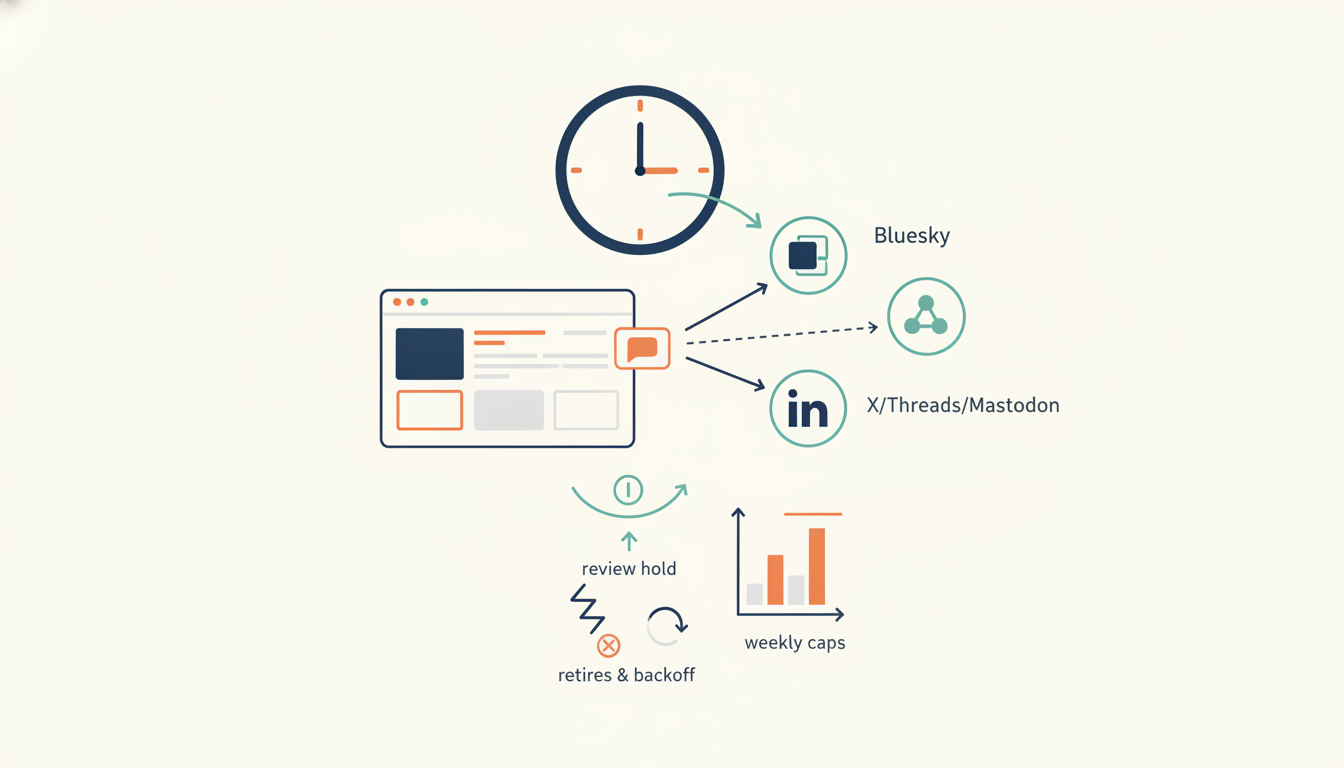
Your server receives the payload, extracts the live URL, and begins formatting the text for your connected social networks. AmplifySignal runs on this exact architecture. It generates drafted articles and schedules them in Ghost with an optional review hold. When Ghost publishes the post and fires the webhook, the system waits about two hours and posts to Bluesky, then schedules a separate post to LinkedIn for the next morning. Each post is formatted to respect the character limits of its specific network.
Handling network constraints and manual steps
When your server receives the Ghost webhook, it has to adapt the raw blog content for different platforms. You cannot send raw HTML to a social network API. You have to strip the tags, extract a clean summary, and ensure the resulting text fits within the platform limits. I cover the specifics of writing the hook for one of these networks in a separate guide on the LinkedIn post character limit before see more.
For platforms with open APIs, you push the formatted text directly. You format the JSON payload, attach the bearer token, and send it to the endpoint. I document the exact payload structure for another open network in my article on how to use the Bluesky API to create a post.
Some networks restrict API access or make automated posting difficult. For X, Threads, and Mastodon, pushing payloads directly is often blocked or requires expensive developer tiers. Instead of fighting the API, you can automate the drafting phase and leave the final click to a human. Your server takes the published Ghost URL and your formatted text, URL-encodes them, and generates a prefilled composer link. You click the link, review the post in the official app or web interface, and hit publish yourself.
What happens if a syndication request fails?
Ghost rarely drops a scheduled post, but the external systems listening for the webhook frequently fail. If your receiving server restarts exactly when Ghost sends the payload, you miss the event entirely. If the social network API is down for maintenance, your script will crash trying to push the update.
You handle this by implementing weekly caps per channel and building a retry loop with exponential backoff. When a social network API returns a 500-level server error or a rate limit warning, your system should catch the error, wait a few minutes, and try again.
You also need a way to track which networks received the post and which ones failed. If you blindly retry a batch job, you risk sending duplicate posts to the networks that succeeded on the first attempt. You maintain a database table that logs the status of each individual social request tied to the specific Ghost post ID. I detail the database structure for this in my guide on handling partial syndication failures without creating duplicate posts.